FSR Explained: Everything Handheld Gamers Need to Know
FSR can help handheld gamers improve performance by rendering games at a lower resolution and upscaling the image. Learn how FSR works, when to use it and which quality mode is best for your device.
Published June 15, 2026Updated June 15, 2026
Category
Performance
Difficulty
Beginner
Reading time
Not set
Published
June 15, 2026
HandheldAtlas guide
Complete walkthrough
Introduction
FSR is one of the most useful performance features for handheld gaming. On devices such as the ROG Ally X, Steam Deck, Legion Go and MSI Claw, every watt matters. FSR can help improve frame rates without forcing you to drop every setting to potato mode.
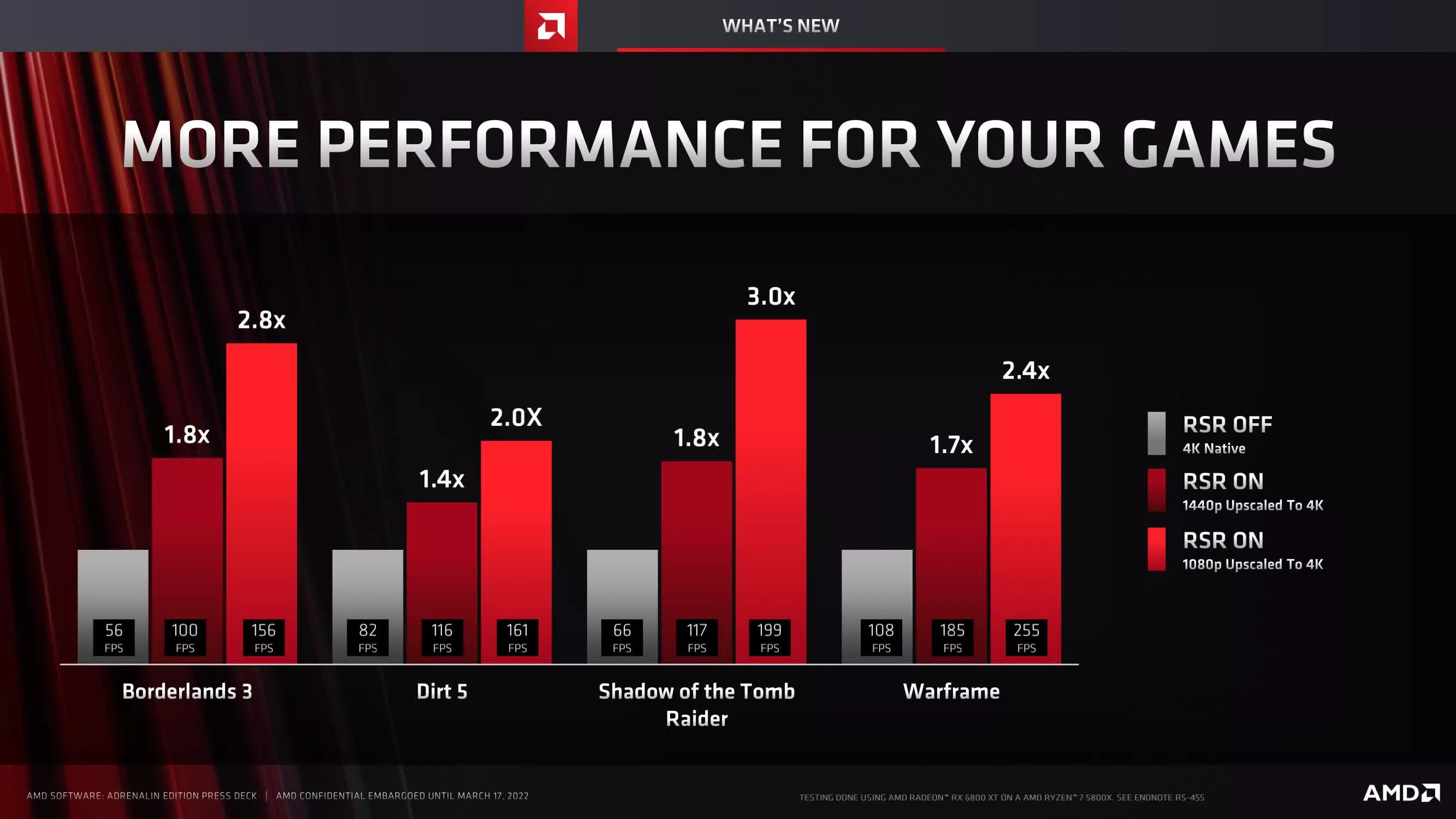
FSR stands for FidelityFX Super Resolution. It is AMD’s upscaling technology designed to improve performance by rendering a game at a lower internal resolution and then scaling the image back up to your selected output resolution.
In simple terms, the game does less heavy rendering work, while FSR tries to keep the final image sharp and clean.
What Is FSR?
FSR is an image upscaling technology.
Instead of rendering the game at full native resolution, the game renders at a lower resolution first. FSR then upscales that image to match your screen resolution.
For example:
A game running at 1920 × 1080 with FSR Quality does not render every frame at full 1080p internally. It renders at a lower resolution, then upscales the image back to 1080p.
This can reduce GPU load and increase FPS.
Why FSR Matters on Handhelds
Handheld gaming devices are power-limited.
Unlike desktop PCs, handhelds must balance:
FPS
Battery life
Heat
Fan noise
Image quality
Power consumption
FSR helps because it can reduce the workload on the GPU while keeping the game visually acceptable on a smaller screen.
On a handheld display, the loss in image quality is often less noticeable than it would be on a large monitor.
Common FSR Modes
Most games offer several FSR modes.
Quality
Best image quality with a smaller performance boost.
Recommended for:
1080p gaming
Docked mode
Slower-paced games
Visual-heavy titles
Balanced
Middle ground between image quality and performance.
Recommended for:
Most handheld gaming
AAA games
40–60 FPS targets
Performance
Higher FPS boost with more visible image loss.
Recommended for:
Demanding games
Lower power targets
Battery-focused presets
Ultra Performance
Maximum FPS boost with the weakest image quality.
Recommended only when:
The game is extremely demanding
You are using a high output resolution
You accept a softer image
Best FSR Mode for Handheld Gaming:
For most handheld users, the best starting point is: FSR Quality at 1080p or FSR Balanced at 900p or 800p
This usually provides a strong balance between performance and image clarity.
Recommended starting points:
ROG Ally X
1080p:
FSR Quality or Balanced
900p:
FSR Quality
720p:
FSR Quality or Off, depending on the game
Steam Deck OLED
800p:
FSR Quality or Balanced
Legion Go
1600p:
FSR Balanced or Performance
1200p:
FSR Quality or Balanced
Should You Use FSR in Every Game?
No.
FSR is useful, but it is not magic. Some games handle upscaling better than others.
Use FSR when:
You need more FPS
GPU usage is high
The game feels unstable
You want lower TDP
You want better battery life
Avoid FSR when:
The game already runs smoothly
The image becomes too blurry
Text or UI becomes hard to read
The game has poor FSR implementation
FSR vs Native Resolution
Native resolution usually gives the cleanest image.
FSR gives better performance.
The choice depends on your goal.
If you want the sharpest image:
Use native resolution.
If you want more FPS:
Use FSR Quality or Balanced.
If you want longer battery life:
Use FSR with a lower TDP limit.
FSR and TDP
FSR works especially well when combined with TDP tuning.
Example:
Instead of running a game at native 1080p and 30W, you may be able to use FSR Quality and reduce TDP to 20W while keeping similar performance.
That means:
Lower temperatures
Less fan noise
Better battery life
More stable handheld experience
This is why FSR is so valuable for handheld gaming. It is not only about higher FPS. It can also help improve efficiency.
Best Practical Settings
For Balanced presets:
Resolution:
900p or 1080p
FSR:
Quality or Balanced
FPS Target:
40–60 FPS
TDP:
18W–25W
For Battery Saver presets:
Resolution:
720p or 800p
FSR:
Balanced
FPS Target:
30–40 FPS
TDP:
10W–15W
For Docked presets:
Resolution:
1080p
FSR:
Quality
FPS Target:
60 FPS or higher
TDP:
30W–35W
Final Thoughts
FSR is one of the easiest ways to improve handheld gaming performance. It can increase FPS, reduce GPU load and help extend battery life when combined with smart TDP settings.
For most players, FSR Quality is the safest starting point. If you need more performance, try Balanced. Performance mode should be used only when the extra FPS matters more than image clarity.
The best setting always depends on the game, device and screen resolution. Test, adjust and find the balance that feels right.