Handheld VRAM Explained: Auto vs Fixed UMA Allocation
Understand how integrated graphics shares system memory, when Auto is the right VRAM setting, and when a fixed UMA allocation can solve real handheld gaming problems.
Published August 25, 2026Updated August 29, 2026
Category
Performance
Difficulty
Intermediate
Reading time
9 min
Published
August 25, 2026
HandheldAtlas guide
Complete walkthrough
Introduction
Handheld gaming PCs do not usually have a separate pool of video memory like a desktop graphics card. Their integrated GPU and CPU share the device's system memory. The VRAM setting therefore changes how much RAM is reserved for graphics—it does not add new memory or make the GPU itself faster.
That distinction explains why a larger number can help one game and hurt another. A fixed allocation may satisfy a game's VRAM check or protect space for textures, but it also leaves less memory available to Windows, the CPU and the rest of the game.
What UMA memory means
UMA stands for Unified Memory Architecture. On an APU, the processor and integrated graphics use the same physical memory pool.
A handheld may describe part of that pool as dedicated GPU memory and another part as shared GPU memory. The dedicated-looking value on an integrated GPU is normally a reserved portion of system RAM, not separate graphics chips.
Windows can also make shared system memory available to the GPU dynamically. Microsoft documents dedicated system memory and shared system memory as separate parts of the total graphics-memory calculation. This is why the numbers shown in Task Manager should not be interpreted like the fixed VRAM capacity printed on a desktop graphics card box.
What Auto does
Auto allows the firmware, driver and operating system to manage the graphics-memory reservation without forcing a large fixed block.
AMD states that UMA frame buffer size is normally set to Auto and usually does not need adjustment. For most games, Auto is the safest starting point because it preserves flexibility between CPU, GPU and operating-system memory demands.
Auto is especially sensible when:
• The game launches without a VRAM warning
• Textures load correctly
• System memory is already heavily used
• Performance is stable across repeated runs
• You switch between many games with different requirements
Do not change the setting simply because Task Manager shows a smaller dedicated-GPU figure than expected. The displayed reservation is not the complete amount of memory the integrated GPU can address.
When a fixed allocation can help
Some PC games were designed around discrete graphics cards and make decisions based on the reported dedicated-VRAM value. They may refuse to launch, show an incorrect warning, select low-resolution textures or enforce a lower graphics preset even when the handheld has enough total memory.
AMD notes that manually setting the UMA frame buffer can potentially resolve missing or low-resolution textures and warnings that the GPU does not meet a game's requirements. ASUS gives similar reasons for increasing the ROG Ally's allocation.
Test a fixed value when:
• A game reports insufficient VRAM despite adequate total memory
• High-resolution textures do not load correctly
• A graphics option is incorrectly locked
• Repeatable stutter coincides with texture streaming
• A trusted game-specific guide documents a working allocation
A fixed value is a compatibility tool, not a guaranteed FPS upgrade. It cannot add memory bandwidth, GPU compute units or power headroom.
Why more is not always better
Every gigabyte reserved for the GPU is removed from the memory immediately available to Windows and CPU-side game data. This matters most on a 16GB handheld, where a very large reservation can leave too little space for the operating system, game logic, shader data and background applications.
Symptoms of an excessive allocation can include:
• Increased paging to the SSD
• Longer application switching
• Stutter caused by system-memory pressure
• Crashes or out-of-memory errors
• Worse performance in CPU-heavy games
AMD explicitly warns that an oversized UMA allocation can reduce overall system performance when physical RAM is limited. The same trade-off applies to handhelds: the correct setting is the smallest reservation that solves the actual problem.
Practical starting points
These are testing baselines, not universal presets.
For a 16GB handheld:
• Start with Auto
• If a game misdetects VRAM, test 4GB first
• Try 6GB only when the game shows a clear benefit
• Treat 8GB as game-specific because it reserves half of total RAM
For a 24GB handheld:
• Start with Auto
• Test 6GB when a title needs a larger reported reservation
• Test 8GB for texture-heavy games only when evidence supports it
• Return to Auto if system-memory use or stability becomes worse
For 32GB or more:
• Auto remains a valid default
• A larger fixed value is easier to accommodate, but still needs a reason
• Do not assume a larger reservation improves frame rate
The best value can change between games. A texture-heavy open-world title and a CPU-heavy simulation may prefer different memory balances on the same handheld.
How to change VRAM on ROG Ally devices
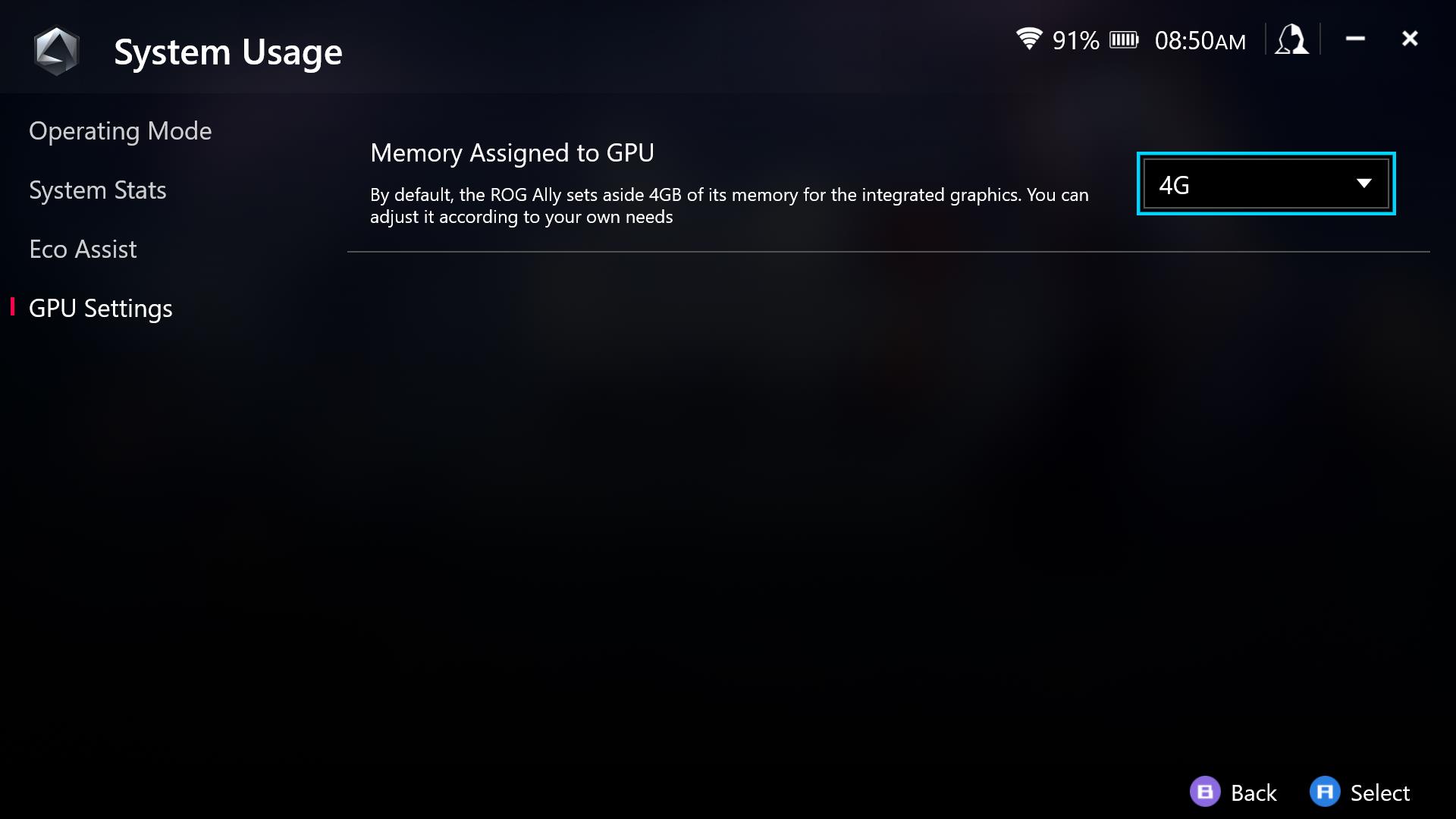
ASUS documents the control inside Armoury Crate SE.
On the original ROG Ally interface:
• Open Armoury Crate SE
• Go to Settings
• Open Operating Mode
• Select GPU Settings
• Change Memory Assigned to GPU
• Restart the handheld
On newer ROG Ally and ROG Xbox Ally interfaces, ASUS lists the path as Settings, Performance, then GPU Settings.
Available values depend on the device, firmware and installed Armoury Crate version. ASUS documents a 4GB default and values up to 8GB for the original ROG Ally, but other models may expose different options. Use the choices shown by your own device rather than copying an unsupported value from another handheld.
A restart is required for a changed reservation to take effect.
How to test a change properly
Change one variable at a time.
Use this process:
• Record the original setting
• Choose one repeatable save, route or built-in benchmark
• Keep resolution, TDP, graphics settings and frame cap unchanged
• Warm up the game before recording
• Capture the same route more than once
• Watch both GPU memory and total system-memory use
• Compare frametime behaviour, not only average FPS
• Check texture loading and stability
• Return to Auto if the fixed value does not solve a visible problem
Do not judge the result from a title screen or one short run. Shader compilation, asset loading and background Windows tasks can create stutter unrelated to VRAM.
Common mistakes
Copying one value across every game
A fixed allocation that helps one title can reduce memory available to another. Store VRAM guidance per game and device.
Assuming allocated means used
A reserved 8GB does not prove that the game needs or actively uses 8GB.
Chasing the largest number
The goal is not maximum reserved memory. The goal is stable performance without starving the system.
Changing VRAM and graphics settings together
If several settings change at once, you cannot identify what improved or broke the result.
Treating a launch warning as a benchmark
A fixed allocation can bypass a compatibility check without improving frame rate. Verify gameplay separately.
The practical recommendation
Leave VRAM on Auto unless you have a specific problem or repeatable evidence for a game-specific fixed value.
When manual allocation is necessary, start conservatively and increase only until the warning, texture issue or measured instability is resolved. Record the device's total RAM and the exact setting with every preset.
For HandheldAtlas, a VRAM value should be published only when the source identifies the handheld and allocation. If it is unknown, the field stays blank. A popular community number is not evidence by itself.
Official sources
ASUS: How to increase the ROG Ally's VRAM allocation
https://rog.asus.com/articles/guides/how-to-increase-the-rog-allys-vram-allocation/
ASUS: How to boost gaming performance on ROG Ally devices
https://rog.asus.com/articles/guides/how-to-boost-gaming-performance-on-the-rog-ally/
AMD: Configuring UMA Frame Buffer Size
https://www.amd.com/en/resources/support-articles/faqs/PA-280.html