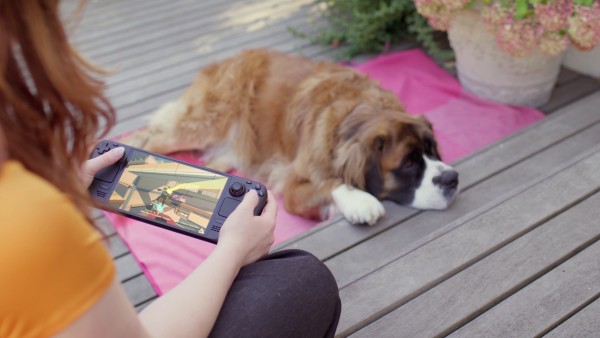
How to Capture Handheld Gameplay with Steam Game Recording
Record repeatable gameplay evidence on Steam Deck or a Windows handheld, trim the useful section, and share it without confusing an OSD reading with a measured benchmark.
Published September 20, 2026Updated September 20, 2026
Category
Performance
Difficulty
Beginner
Reading time
5 min
Published
September 20, 2026
HandheldAtlas guide
Complete walkthrough
Why use Steam Game Recording?
Valve's built-in recorder works inside the Steam client on Steam Deck and desktop systems, including Windows handhelds. It can record manually or maintain a rolling background recording within limits you choose. That makes it a convenient way to preserve a settings walkthrough, visible performance overlay and repeatable test route without installing a separate video recorder.
A video is supporting evidence, not an FPS measurement by itself. A single number visible in an overlay is an instantaneous reading. HandheldAtlas only treats an average FPS result as measured when it comes from a built-in benchmark, CapFrameX, MangoHud or another documented capture method.
Choose the right recording mode
Open Steam > Settings > Game Recording. On Steam Deck, open Settings from the Steam menu and select Game Recording.
Recording Off disables the feature.
Record in Background keeps a rolling recording while a game is running. Set a time or storage limit so Steam does not retain more footage than you need.
Record on Demand starts and stops only when you use the configured recording command. This is usually the cleaner choice for a planned settings demonstration or benchmark evidence.
Valve exposes recording quality, storage location and game-specific controls. Check the estimated storage use before a long session and leave enough free space for the clip and its export.
Prepare a useful evidence run
1Update Steam and restart it if the client requests an update.
2Select Record on Demand unless you specifically need to save something that already happened.
3Confirm the recording command. Desktop Steam uses Ctrl+F11 by default; verify the current binding rather than assuming it has not been changed. On a handheld, assign a convenient command in Steam Input if necessary.
4Enable the performance overlay you intend to document.
5Before gameplay, show the game's display and graphics menus slowly enough for resolution, preset, upscaling, frame generation and V-Sync to be read.
6If the device has selectable power modes, document the exact mode or TDP separately. Steam Game Recording captures the game, not every operating-system panel.
7Load a repeatable save, built-in benchmark or named route. Start from the same place for every comparison.
8Record long enough to show the complete run, then stop recording after the result or capture overlay is visible.
For a HandheldAtlas submission, write down the exact handheld model, whether it was plugged in or on battery, operating system, power mode, resolution, graphics profile, upscaler, frame generation state and the route used. Keep unavailable values blank rather than estimating them.
Create and export the clip
On desktop Steam, open View > Recordings & Screenshots. On Steam Deck, open the Media section from the main menu. Select the session, mark the start and end of the useful sequence, then save it as a clip.
Valve supports exporting video as MP4 and transferring or sharing clips through Steam's available export options. Use the original clip when possible. Avoid recompressing it repeatedly, because small overlay text can become unreadable.
Before sharing, replay the exported file and confirm that:
the settings text is legible;
the complete test route is present;
the relevant overlay or final benchmark screen remains visible;
the file has audio only if it is useful;
no private chat, account information or unwanted voice communication appears.
Build evidence without changing the test
Recording can add work to the system. Do not claim that it has zero performance impact unless you measured that claim. If you suspect the recorder changes performance, run a matched test with recording off and another with it on, keeping every other condition identical.
For rigorous results, let CapFrameX, MangoHud or the game's built-in benchmark calculate the average and lows. Use Steam Game Recording to show that the stated settings, device conditions and route match the submitted result. If numerical capture and video proof come from separate runs, say so explicitly.
What Steam records
Valve states that Steam Game Recording captures gameplay from games running through the Steam client; it does not record the desktop or unrelated programs. Non-Steam games can be supported when the Steam Overlay works. In-game overlays, notifications, chat or voice may still become part of the gameplay clip, so always review the export before publishing it.
Sources and scope
Documentation checked September 20, 2026. This guide describes Valve's recording workflow and HandheldAtlas evidence practice. Menu labels can change with Steam client updates.
Valve — Steam Game Recording
https://store.steampowered.com/gamerecording
Valve — Steam Game Recording: Available Now
https://store.steampowered.com/news/app/593110/view/4530150757095178610
Cover: official Valve Steam Deck OLED press image, used for illustration. It is not a benchmark screenshot.
https://www.steamdeck.com/en/press