Prepare an external controller, check display settings, and separate dock features from game performance on ROG Xbox Ally and Ally X.
Published September 22, 2026Updated September 22, 2026
Category
Setup
Difficulty
Beginner
Reading time
3 min
Published
September 22, 2026
HandheldAtlas guide
Complete walkthrough
This checklist covers ROG Xbox Ally and ROG Xbox Ally X. It does not assume that the original ROG Ally or Ally X has identical automatic docking behavior.
Prepare the software
ASUS's May 1, 2026 instructions call for current BIOS and firmware through Armoury Crate's Update Center, plus updated Armoury Crate and Xbox apps. Follow the updater's power and restart instructions.
Connect and check the controller
ASUS recommends pairing the external controller before docking. On the documented software, the first paired external controller becomes Player 1 and the embedded controller is disabled when docked. The internal display turns off as content moves to the external screen.
Adjust the display
The Game Bar Display Widget provides resolution, refresh-rate and projection controls. ASUS documents ALLM on supported TVs with its Bulwark Dock or 100W Gaming Charger Dock; the Bulwark also supports VRR. Do not assume every dock and television offers these features.
An Atlas pre-session checklist
Before settling down on the sofa:
Confirm that the TV is on the input connected to your dock.
Launch a familiar game and verify that menu navigation and gameplay use the intended controller.
Check the selected output resolution before judging performance. Record it with any comparison you make.
Check audio output and game volume before entering a multiplayer session.
Save and quit normally before changing connections if you are unsure how the game handles display changes.
Troubleshooting without changing everything
If controller behavior is wrong, inspect controller selection before changing graphics settings. If the picture is wrong, inspect output and projection settings before changing the game's quality profile. Keeping these checks separate makes it easier to identify which step actually resolved the problem.
Scope and evidence
This is a setup checklist, not a tested graphics preset. It provides no measured FPS, latency or battery-life claim. Optional upscaling features are outside its scope.
ASUS — The latest ROG Xbox Ally updates provide a more seamless docking experience for living room play (May 1, 2026; checked September 22, 2026)
https://rog.asus.com/articles/rog-ally/the-latest-rog-xbox-ally-updates-provide-a-more-seamless-docking-experience-for-living-room-play/
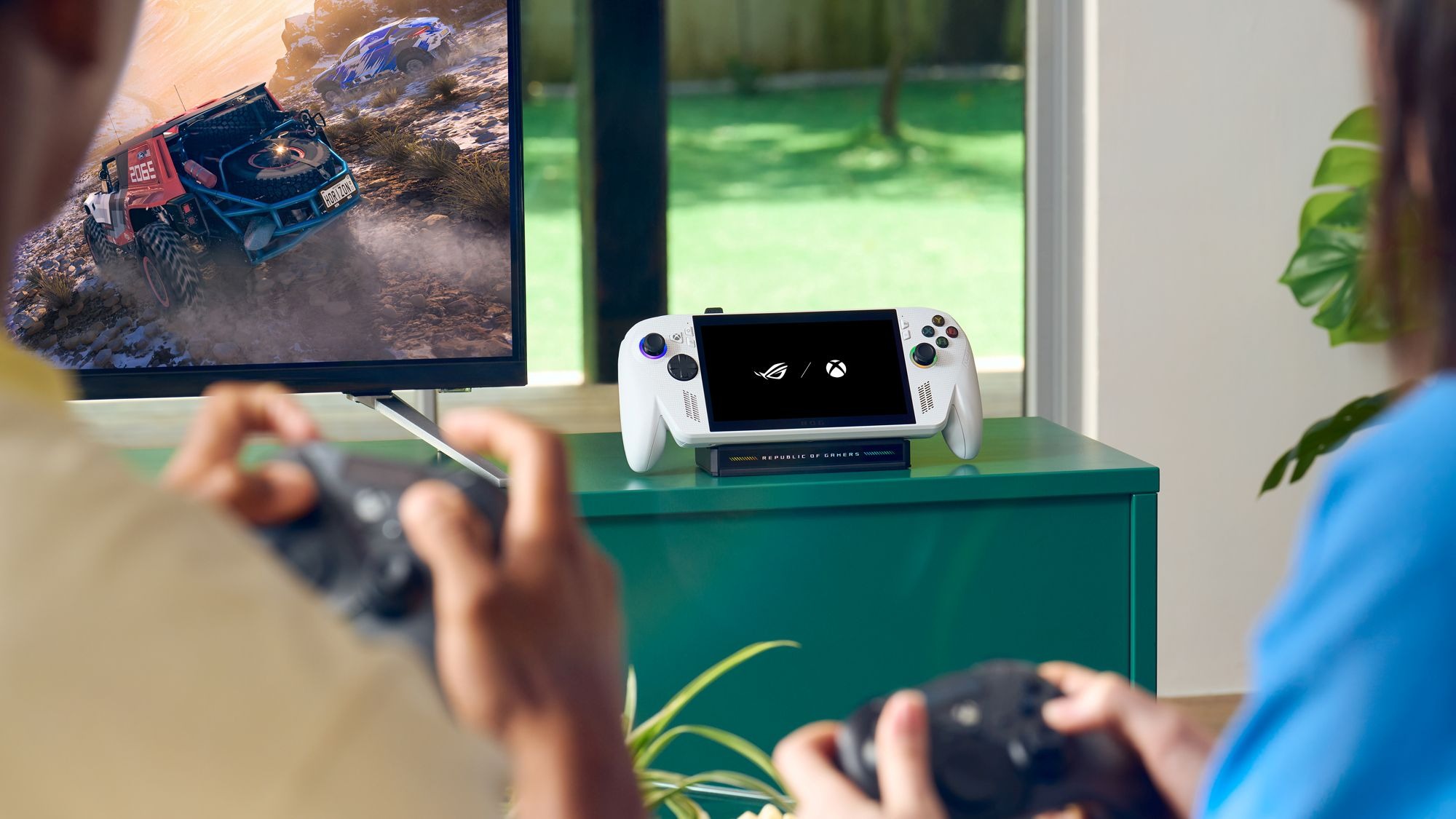
Cover: official ASUS illustration of a ROG Xbox Ally docked beside a television. It is not performance evidence.