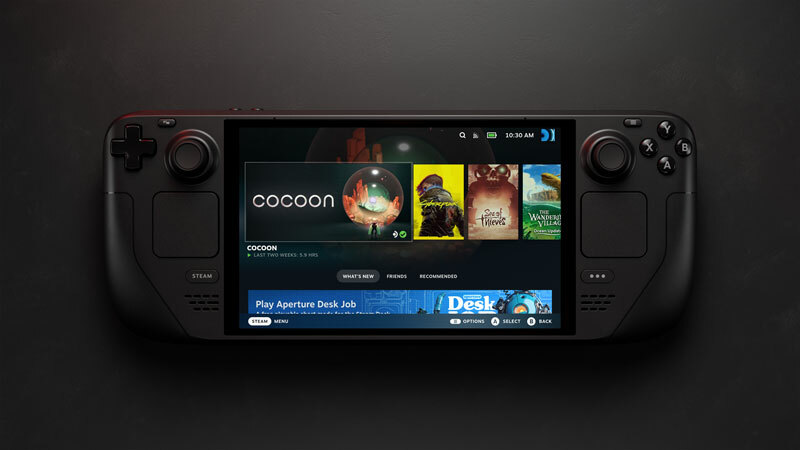
Create an official SteamOS recovery drive, choose the least destructive repair option and recover a Steam Deck, Legion Go S or supported AMD handheld safely.
Published August 29, 2026Updated August 29, 2026
Category
Setup
Difficulty
Intermediate
Reading time
9 min
Published
August 29, 2026
HandheldAtlas guide
Complete walkthrough
Introduction
A SteamOS recovery drive can repair a broken installation, return a handheld from Windows to SteamOS or perform a complete factory reset. Those outcomes are not interchangeable: one option attempts to preserve your games and personal files, while another deliberately wipes the entire device.
This guide follows Valve's current SteamOS installation and recovery procedure, reviewed on August 29, 2026. Read the option descriptions before clicking anything in the recovery desktop.
Current SteamOS support scope
Valve currently lists these devices as officially Powered by SteamOS:
Steam Deck
Steam Machine
Lenovo Legion Go S
Valve lists beta SteamOS support for:
Lenovo Legion Go
ASUS ROG Ally
ASUS ROG Ally X
Other AMD-powered handhelds
PCs using AMD discrete graphics
SteamOS may install on additional AMD hardware, but Steam Support can have limited ability to troubleshoot device-specific problems outside the officially Powered by SteamOS list. Valve directs compatibility reports for those systems to the SteamOS GitHub tracker.
Choose the right recovery option
The recovery environment presents three repair choices:
Repair SteamOS
This reinstalls SteamOS while attempting to preserve installed games and personal content. It is the sensible first recovery choice when the operating system is damaged but the internal drive and user data may still be intact.
Preservation is an attempt, not a backup guarantee. Copy important files elsewhere before starting whenever the device still allows it.
Re-image Device
This is a full factory reset. It removes user information, installed games, applications and other operating systems, then replaces them with stock SteamOS.
Use it when you intentionally want a clean SteamOS installation, are removing Windows or another operating system, or when repair has failed and all important data is already backed up.
Recovery tools
This opens a command prompt with tools for changing the boot partition. It is intended for advanced repair work. Do not use it merely because the other labels sound less exciting; an incorrect boot-partition change can make recovery harder.
The installation desktop also provides Wipe Device & Install SteamOS. As the name suggests, this fully wipes the device and installs stock SteamOS.
Before you begin
Prepare the following:
Another Windows, macOS or Linux computer
A USB drive with at least 8GB capacity
A USB-C adapter or hub if the recovery drive does not connect directly
The official SteamOS image from Valve
AC power for the handheld
A backup of local saves, Desktop Mode files, screenshots and downloads
Account credentials and two-factor authentication methods
Writing the recovery image erases the USB drive. Re-imaging or using the wipe-and-install option erases the handheld.
Check Steam Cloud before relying on it. Not every game supports cloud saves, and a queued or conflicted save may not have reached the server.
Create the SteamOS recovery drive
1Open Valve's official SteamOS download page and download the current recovery image.
1Insert the USB drive into the computer. Confirm that it contains nothing you still need.
3. Write the image to the drive:
Windows: Valve recommends Rufus. Select the downloaded recovery file, write it to the USB drive, then close Rufus and safely eject the drive.
macOS: Valve recommends Balena Etcher.
Linux: Valve supports Balena Etcher and also documents a command-line method. Use the graphical option unless you are completely certain which device path belongs to the USB drive.
Do not extract files onto an ordinarily formatted USB drive. The recovery image must be written as a bootable image.
Boot a Steam Deck from the recovery drive
1Shut the Steam Deck down completely.
1Connect the recovery USB drive through a suitable adapter or hub.
1Hold Volume Up and press the Power button.
1Release Volume Up when you hear the startup chime.
1Use the D-pad and A button to open Boot Manager.
1Select EFI USB Device.
The display can remain dark for a short time while the recovery environment loads. Give it time before assuming the boot failed.
Once the recovery desktop appears, use the touchscreen or the right trackpad and trigger to navigate.
Boot another handheld from the recovery drive
The exact boot-menu shortcut depends on the manufacturer. Follow the device's official BIOS or boot-menu instructions and select the USB drive's UEFI entry.
Many non-Steam Deck handhelds require Secure Boot to be disabled before the SteamOS USB drive will boot. Change only the setting required for recovery and record its previous value.
Valve currently provides these examples:
Lenovo Legion Go and Legion Go S
1Power the handheld down completely.
2Hold Volume Up and press Power while continuing to hold Volume Up.
3Select BIOS Setup in the Novo Button Menu.
4Open More Settings, then Security.
5Set Secure Boot to Disabled.
6Exit and save the changes.
7Return to the boot menu and start the SteamOS USB drive.
ASUS ROG Ally and ROG Ally X
1Restart the handheld.
2Hold Volume Up during the restart to enter the BIOS utility.
3Press Y for Advanced Mode.
4Move to the Security tab.
5Open Secure Boot and set Secure Boot Control to Disabled.
6Go back, choose Save & Exit and confirm the change.
7Boot from the SteamOS USB drive.
Menus can change with firmware updates. If the labels on your device differ, stop and use the current support instructions for that exact model rather than guessing.
Repair SteamOS without intentionally wiping everything
After the recovery desktop loads:
1Confirm that the handheld is connected to AC power.
2Open the SteamOS recovery or repair options.
3Select Repair SteamOS.
4Read the confirmation text and make sure you did not select Re-image Device.
5Let the reinstall finish without removing the USB drive or interrupting power.
6Restart when prompted and remove the recovery drive when the device no longer needs it.
Valve describes this option as reinstalling SteamOS while attempting to preserve games and personal content. Check your library, local files and save data after the first successful boot.
Perform a clean SteamOS re-image
Use this path only when a complete wipe is intended:
1Boot into the recovery desktop.
2Select Re-image Device or Wipe Device & Install SteamOS, depending on the recovery desktop presented.
3Read the warning and verify that the backup is complete.
4Confirm the wipe.
5Keep the device connected to power while SteamOS is installed.
6Restart into the SteamOS welcome experience.
7Remove the recovery drive when it is safe to do so.
A clean re-image removes Windows, dual-boot configurations, applications, games and user data from the internal system drive.
After SteamOS starts
Complete setup in a controlled order:
Connect to a trusted network
Sign in to Steam
Install all available SteamOS updates
Restart and check for updates again
Confirm controller, audio, Wi-Fi, Bluetooth and sleep behaviour
Re-enable Secure Boot if your device's supported configuration requires it
Reinstall games gradually
Verify cloud-save state before opening an important save
Restore Desktop Mode files only after the system is stable
On beta-supported hardware, test suspend, audio, controls, display rotation and power management before treating the installation as production-ready.
If the USB drive does not appear
Work through these checks:
Confirm the image was written with Rufus or Etcher rather than copied as a normal file
Try another USB drive, adapter or hub
Fully shut down the handheld before opening its boot menu
Select the UEFI or EFI entry for the USB drive
Allow several minutes for a slow recovery drive to boot
On non-Steam Deck hardware, verify Secure Boot requirements for the exact model
Re-download the official image if the write process reported an error
If the internal drive is not detected, the installer repeatedly fails or the device loses power during recovery, stop retrying destructive options. Record the exact error and use the manufacturer's support channel.
The practical decision tree
SteamOS still boots and only one game is broken:
Do not re-image. Verify the game files and troubleshoot the game first.
SteamOS does not boot, but you need to preserve local data:
Create the official recovery drive and try Repair SteamOS first.
You want to remove Windows or start completely clean:
Back up everything, then use Re-image Device or Wipe Device & Install SteamOS.
You are using a beta-supported AMD handheld:
Confirm the current Valve support matrix and manufacturer BIOS procedure before installing. Expect hardware-specific limitations.
Official sources
Valve: SteamOS Installation and Repair
https://help.steampowered.com/en/faqs/view/65B4-2AA3-5F37-4227
Valve: SteamOS Recovery and Troubleshooting
https://help.steampowered.com/en/faqs/view/1B71-EDF2-EB6D-2BB3
Valve: Official SteamOS Image Download
https://store.steampowered.com/steamos/download/?ver=steamdeck
Valve: SteamOS Issue Tracker for Compatibility Reports
https://github.com/ValveSoftware/SteamOS