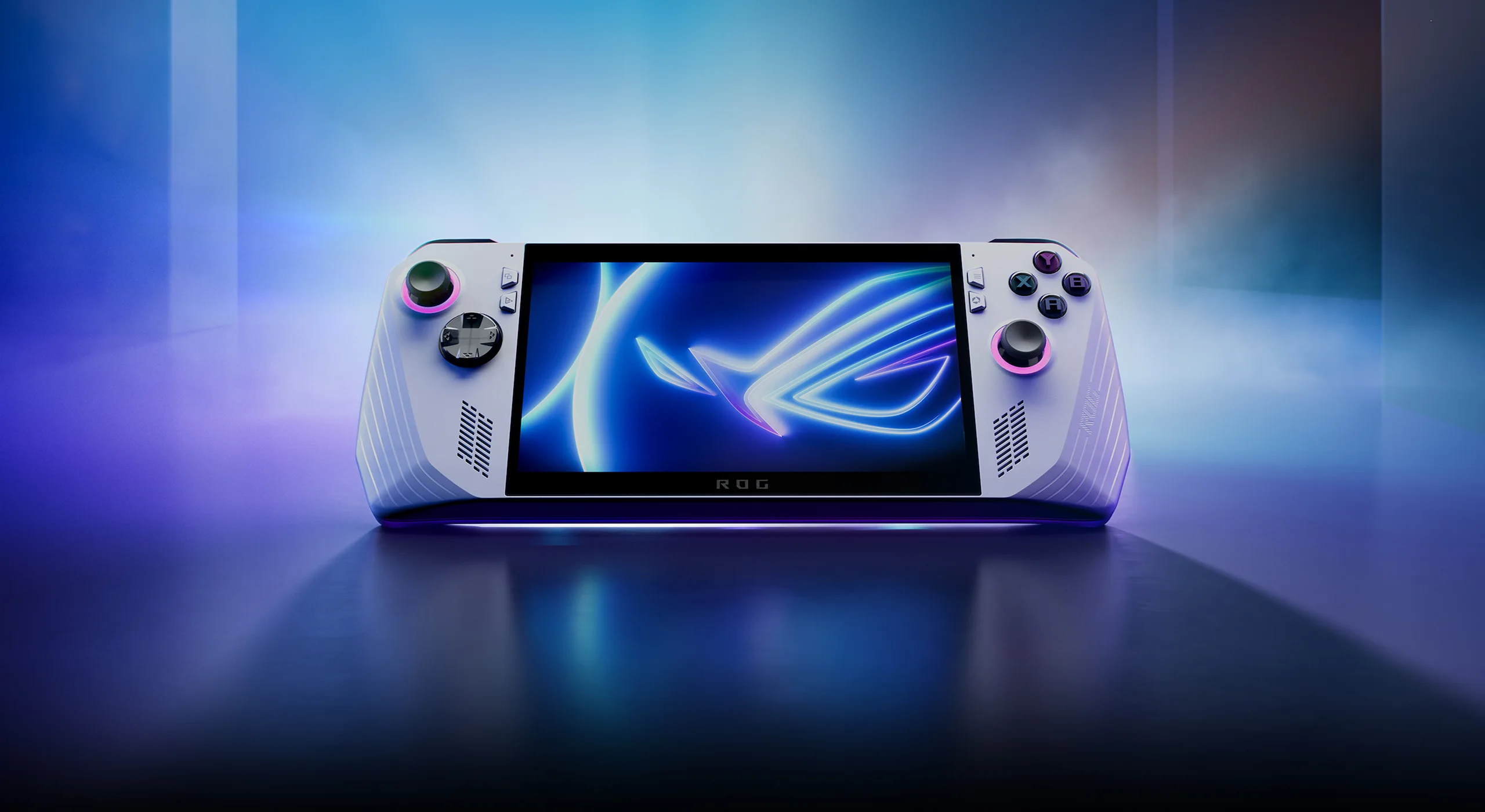
How to Set a Battery Charge Limit on a Windows Handheld
Use official battery-care controls on ROG Ally and MSI Claw, understand Windows Smart Charging, and avoid mistaking an intentional charge cap for a fault.
Published September 5, 2026Updated September 5, 2026
Category
Setup
Difficulty
Beginner
Reading time
7 min
Published
September 5, 2026
HandheldAtlas guide
Complete walkthrough
Introduction
Keeping a handheld connected to its charger is convenient, but holding a lithium-ion battery at full charge for long periods can accelerate wear. Many Windows handhelds therefore expose an official charging limit or adaptive charging mode.
A charge limit cannot restore capacity already lost. Its purpose is simpler: reduce the time the battery spends at a very high state of charge when maximum unplugged runtime is unnecessary.
This guide uses only controls documented by Microsoft, ASUS and MSI. Names and availability can change by model, firmware and utility version, so use the option shown by your own device instead of forcing a third-party workaround.
Choose a mode for the way you use the handheld
Before changing anything, update the BIOS, firmware and manufacturer utility through the vendor's normal update path. Then consider your routine:
Mostly docked or connected to AC: use the strongest available lifespan-focused limit.
Mixed desk and battery use: an approximately 80% mode is a practical compromise when the manufacturer offers it.
Travel day: temporarily allow a full charge, then restore the usual limit afterward.
Long-term storage: follow the manufacturer's storage guidance rather than leaving the device plugged in indefinitely.
These percentages are not a universal law. The correct setting is an officially supported mode that still provides enough runtime for your use.
Windows Smart Charging
Windows can display a heart icon over the battery symbol when Smart Charging is active. Microsoft explains that the feature is implemented by the device manufacturer and may intentionally keep the battery below 100%.
There is no universal Windows switch that forces one percentage on every PC. Its location, behavior and availability depend on the hardware, firmware and manufacturer software.
If the battery stops below 100% and Windows shows the Smart Charging heart, that is expected behavior rather than proof of a failed charger. Use the manufacturer utility or support instructions to pause the feature when you need a full charge.
ROG Ally and supported ASUS devices
On supported ASUS hardware, open MyASUS and find Device Settings, then Battery Care Mode or Battery Health Charging. The exact wording depends on the model and MyASUS version.
ASUS documents three behaviors:
Full Capacity Mode permits charging to 100% for maximum unplugged runtime.
Balanced Mode stops charging above 80% and resumes below 78%.
Maximum Lifespan Mode stops charging above 60% and resumes below 58%.
For a ROG Ally used mainly while docked, select the strongest lifespan-focused option exposed by the current MyASUS installation. For mixed use, the 80% option is less restrictive. Before travel, switch temporarily to Full Capacity Mode and confirm that charging resumes.
A small band around the selected cap is normal. ASUS deliberately separates the stop and resume points to avoid constant micro-cycling.
MSI Claw and supported MSI devices
On supported MSI systems, open MSI Center and look for Battery Master or Battery Health Option.
MSI documents three modes:
Best for Mobility allows a full charge for maximum runtime.
Balanced starts charging below 70% and stops at 80%.
Best for Battery starts charging below 50% and stops at 60%.
MSI also notes that some models may stop charging around 90–95% as part of battery protection. Labels and thresholds can vary by model, so verify the controls visible on the specific Claw and its current MSI Center version.
Battery Calibration is separate. It can help when the reported percentage or runtime estimate is inaccurate; it is not a routine battery-health setting and should not be run merely on a schedule.
Lenovo Legion Go and other handhelds
Do not copy an ASUS or MSI threshold into another manufacturer's software. Check the current Legion Space version, BIOS and official manual for the exact Legion Go model. If the device exposes no supported conservation or charge-limit control, Windows alone cannot guarantee a universal fixed limit.
Avoid unsigned utilities, firmware modifications and smart-plug timing recipes presented as equivalent to a firmware-controlled cap. A plug timer cannot see the battery-management state and may create unnecessary cycles.
What “plugged in, not charging” can mean
When the battery is at or above the selected threshold, the handheld may report that it is connected but not charging. That is normally the charge-limit feature working correctly.
Investigate when the behavior no longer matches the configured mode—for example, the level continues falling well below the documented resume threshold while the correct charger is connected:
1Confirm the mode in the manufacturer app.
2Reconnect the charger directly, without an unverified hub.
3Restart the handheld.
4Install official firmware and utility updates.
5Follow the manufacturer's battery troubleshooting page.
Do not repeatedly toggle the limit simply to hold one exact percentage.
Heat still matters
A charge cap does not make the battery immune to heat. Keep ventilation openings clear, avoid charging under bedding or inside a closed case, and let an overheated device cool before charging.
Gaming on external power can combine system heat with charging heat. Use the official charger, a stable surface and supported performance modes. A lower ceiling reduces time at full charge, but it does not replace sensible thermal conditions.
Do not invent battery-life claims
Do not estimate how many months or years a 60% or 80% limit will add. Aging depends on temperature, charge cycles, storage state, workload and the battery-management implementation.
A charge limit is also not a battery benchmark. For a handheld battery-life result, record the exact model, brightness, refresh rate, volume, wireless state, performance mode, workload, starting and ending percentages, and elapsed time. Leave unavailable values blank.
Quick checklist
Use the device maker's official utility or firmware control.
Record the exact mode and thresholds shown by the device.
Expect charging to stop near the configured ceiling.
Temporarily allow 100% only when the extra runtime is useful.
Restore the normal limit after travel.
Keep the device ventilated while charging and gaming.
Use calibration only for reporting problems, not routine maintenance.
Never claim a lifespan improvement without measured evidence.
Official sources
Microsoft: Use Smart Charging in Windows
https://support.microsoft.com/en-us/windows/experience/power-battery/use-smart-charging-in-windows
ASUS: Battery Health Charging — Introduction
https://www.asus.com/support/faq/1032726/
MSI: What to do when the battery is not charging
https://www.msi.com/support/technical_details/NB_Battery_Charge
MSI: MSI Center features and battery modes
https://www.msi.com/support/technical_details/NB_%20SW_MSI_Center
Final note
Choose the official mode that fits normal desk use, lift it before a trip when necessary, and report the exact device behavior instead of treating one manufacturer's threshold as a universal rule.