MSI Claw A1M Game Setup: Updates, Balanced Mode, and Safe Tuning
A practical MSI-backed setup workflow for updating the Claw A1M, establishing a Balanced baseline, tuning graphics one step at a time, and handling optional Windows security changes responsibly.
Published October 6, 2026Updated October 6, 2026
Category
Performance
Difficulty
Beginner
Reading time
5 min
Published
October 6, 2026
HandheldAtlas guide
Complete walkthrough
The MSI Claw A1M can run the same game very differently depending on firmware, Windows power settings, display mode, resolution, and individual graphics options. Use this official MSI-backed workflow to build a repeatable baseline before applying game-specific tweaks.
This guide covers the original MSI Claw A1M. It is a setup and tuning procedure, not a measured benchmark or a universal game preset.
1. Update the exact device first
Connect the Claw A1M to power and the internet. Press the MSI button or open MSI Center M from the system tray, then go to News and Updates and select Scan.
Install the drivers and BIOS firmware offered for the Claw A1M. Restart Windows after firmware or BIOS updates. Do not substitute packages intended for Claw 8 AI+, Claw 8 EX AI+, Claw A8, or another MSI handheld.
Updating first matters because an old graphics driver, firmware build, or MSI Center M version can look like a game-settings problem.
2. Establish a Balanced baseline
In MSI Center M, set User Scenario to Balanced. In Windows 11, right-click the battery icon, open Power & sleep settings, and keep Power mode on Balanced.
This creates a documented starting point. It does not mean Balanced is automatically the fastest or most efficient mode for every game. Record any later change so a result can be reproduced.
3. Prevent inherited desktop settings from causing trouble
A game may synchronize settings from another PC. High desktop settings can exceed the handheld's available graphics memory and, as MSI notes, may even cause a first launch to fail.
If possible, lower the game's settings on the previous device before launching it on the Claw. On the handheld, start with Low rather than assuming the synchronized configuration is appropriate.
4. Start in Borderless Windowed mode
Select Borderless Windowed in the game's display menu. When a launcher needs a command-line option, MSI documents:
-Windowed -noborder
MSI says Borderless Windowed may reduce occasional stuttering in some games. Treat that as a troubleshooting starting point, not a guaranteed performance improvement.
5. Tune from a low, repeatable baseline
Open the game's Graphics or Display menu and begin conservatively:
lower the resolution when needed, with 1280 × 720 as MSI's example;
use Borderless Windowed;
turn ray tracing off;
start with the Low graphics preset;
enable Intel XeSS when the game supports it;
change only one setting at a time;
test the same scene after each change.
MSI also suggests beginning with V-Sync and the in-game FPS limit disabled while finding the performance ceiling. That is a diagnostic baseline, not a universal final recommendation. After testing, a stable frame-rate cap may provide steadier frame delivery and lower power use, but the chosen cap must not be reported as a measured average FPS.
Raise individual settings to Medium or High only when the same test scene remains acceptably smooth. Record render resolution, upscaling mode, graphics settings, and the exact MSI Center M scenario together.
6. Treat Windows security changes as optional diagnostics
MSI notes that Memory integrity and Virtual Machine Platform can reduce performance in some games. Both are Windows security features. Disabling them lowers protection and they stay disabled until manually re-enabled.
Do not make this the first tuning step. Test updates, Balanced mode, resolution, ray tracing, upscaling, and graphics quality first. If you still want to isolate their impact:
1change only one Windows feature at a time;
2restart when Windows requests it;
3repeat the same game scene;
4avoid unknown downloads or untrusted files while protection is reduced;
5manually re-enable the feature after the diagnostic test unless you have a specific ongoing need.
A small or inconsistent change is a reason to keep the security feature enabled.
7. Document a result before calling it a preset
For a useful Claw A1M result, record:
the exact Claw A1M configuration;
driver, BIOS, and game version when material;
MSI Center M scenario or documented TDP;
output and render resolution;
graphics preset and individual overrides;
XeSS mode;
frame-generation state;
V-Sync and frame-rate cap;
the repeatable test scene and measured average FPS.
An on-screen FPS value, a configured cap, or a range observed during casual play is not a benchmark average.
What this guide does not claim
This guide does not supply an FPS result, recommended TDP, battery-life figure, temperature, or tested game preset. MSI's general workflow does not provide a comparable measured run for the Claw A1M, so those fields remain intentionally unfilled.
Source
MSI, “[Gaming Master] Find the Best Gaming Settings for MSI Claw Series Handhelds,” updated August 14, 2026; explicitly lists Claw A1M and documents MSI Center M updates, Balanced mode, Windows security caveats, Borderless Windowed, resolution, XeSS, and step-by-step graphics tuning; checked October 6, 2026:
https://www.msi.com/faq/faq-10203
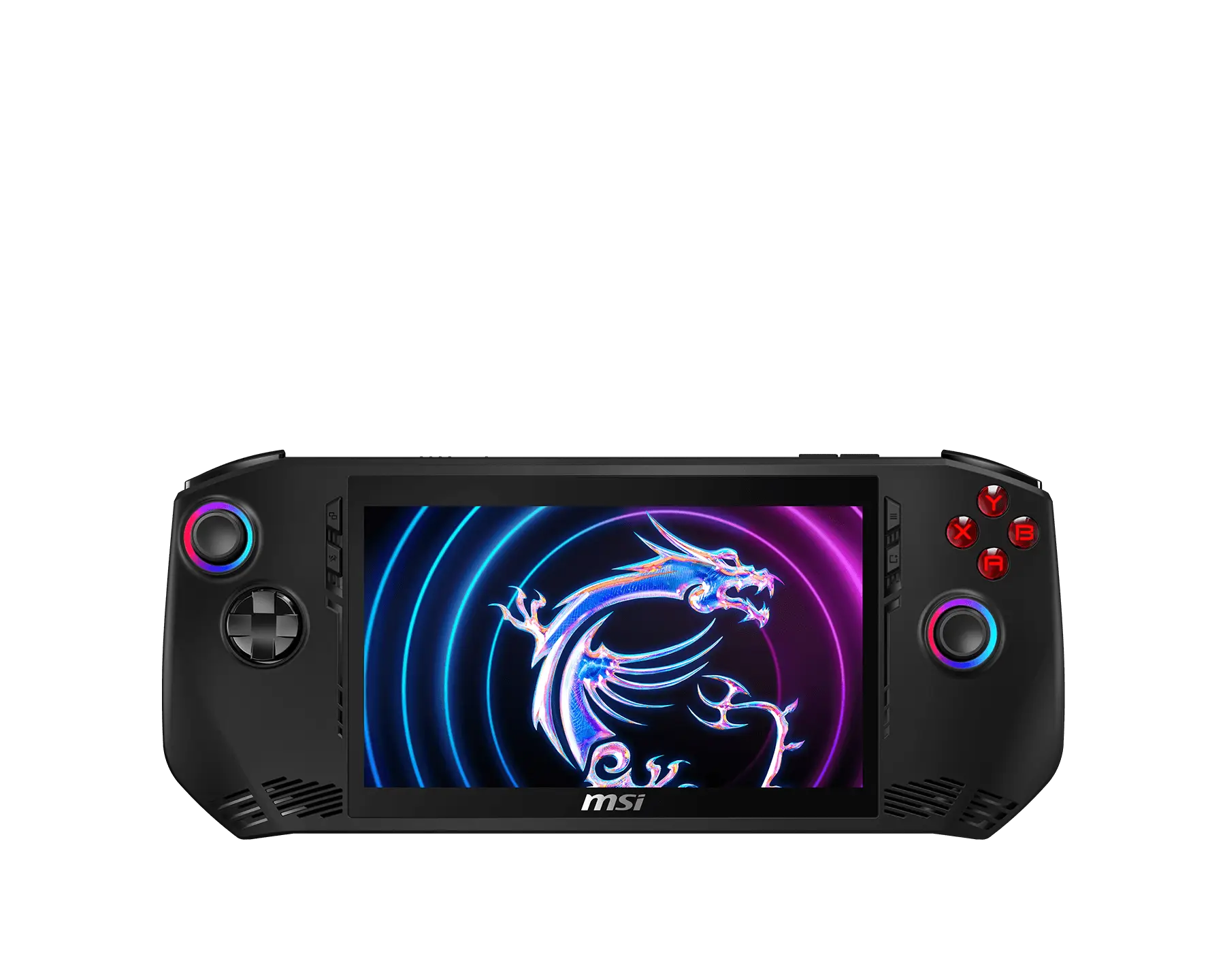
Cover: existing HandheldAtlas image for the exact MSI Claw A1M, visually checked at 1800 × 1440. It identifies the device and is not performance evidence.