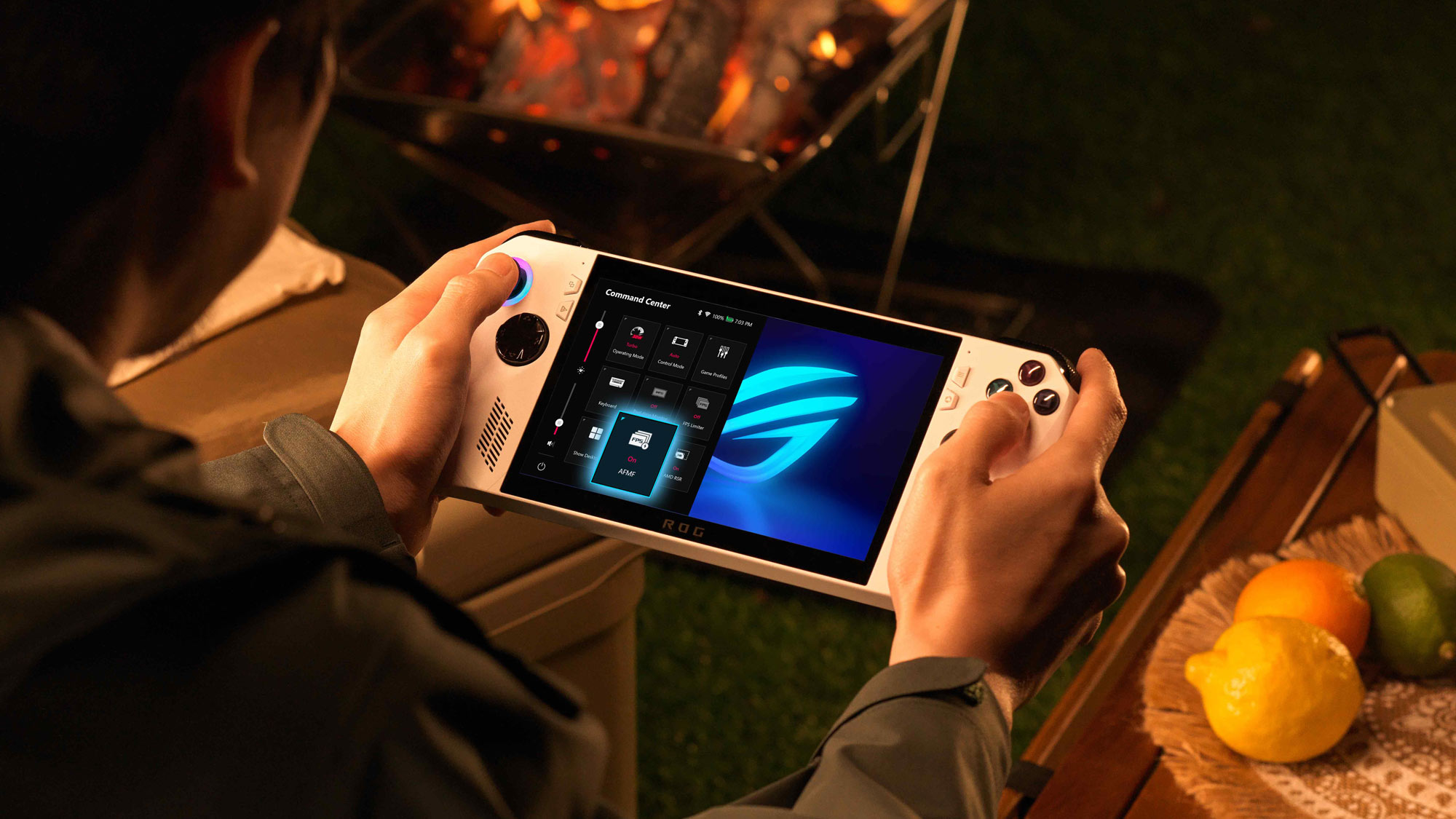
Learn how variable refresh rate, frame caps and V-Sync work together—and how to choose a stable handheld target without guessing.
Published August 25, 2026Updated August 25, 2026
Category
Performance
Difficulty
Intermediate
Reading time
10 min
Published
August 25, 2026
HandheldAtlas guide
Complete walkthrough
Introduction
A handheld can report a high average frame rate and still feel uneven. The display, frame cap and game must agree on when each frame reaches the screen. Variable refresh rate, or VRR, helps that timing, but it is not a substitute for stable rendering.
This guide explains what VRR changes, why a frame cap can improve consistency, how V-Sync fits into the chain and how to test a cap without inventing performance claims.
Refresh rate and frame rate are different
Refresh rate is how often the display can update each second. Frame rate is how many frames the game and GPU actually render.
A 120Hz panel can refresh up to 120 times per second, but that does not mean every game must run at 120 FPS. A demanding title may be smoother at a stable 40 or 45 FPS than at an uncapped rate that jumps constantly between much higher and lower values.
Without VRR, the display refreshes on its own fixed schedule. If a new game frame arrives between refreshes, part of one frame and part of another may appear together. This is screen tearing. Traditional V-Sync can prevent tearing by waiting for the display, but missed timing windows may create visible judder or extra latency.
What VRR does
VRR allows a compatible display to adjust its refresh timing to the frames produced by the GPU. AMD describes FreeSync as synchronizing a display's refresh rate with the graphics card's frame rate to reduce or eliminate tearing, stuttering and latency-sensitive visual artifacts.
VRR works only within the range supported by the complete display path. The panel, graphics driver, connection and current display mode all matter. Do not copy a minimum or maximum VRR number from a different handheld or external monitor.
A higher refresh-rate setting can still be useful when the game runs below the panel maximum. It gives the display more timing flexibility and preserves headroom for menus, lighter scenes and games that can render faster.
What a frame cap does
A frame cap tells the game or driver not to render above a chosen rate. Its main handheld benefit is control, not a free performance increase.
A sensible cap can:
Reduce rapid changes in frame delivery
Keep the game inside a useful VRR window
Prevent repeated collisions with the panel's maximum refresh rate
Lower unnecessary GPU load in lighter scenes
Reduce power draw and heat when the device was rendering frames you did not need
Create a clearer target for graphics and TDP tuning
A cap cannot repair severe shader-compilation stutter, asset-streaming stalls or a CPU bottleneck. It also cannot make a 25 FPS workload behave like a stable 40 FPS workload.
Choose a cap the game can sustain
Start with measured performance, not a preferred number.
Run a repeatable scene without a cap and inspect average FPS, one-percent lows and frametime behaviour. Then select a target the game can hold through demanding sections, not only in an empty room or title screen.
Common handheld targets include 30, 40, 45 and 60 FPS, but none is automatically correct. The best target depends on the game, device, TDP, display mode and the player's priorities.
For example:
Use a lower stable cap when battery life and consistent delivery matter more than peak response
Use a higher cap for competitive or fast-camera games when the hardware can sustain it
Lower graphics settings or resolution before raising the cap beyond repeatable performance
Avoid publishing a target FPS until the exact handheld and settings have been tested
A cap should leave enough performance margin for normal gameplay variation. If a game repeatedly falls far below the target, the cap is too ambitious or the graphics and power settings need adjustment.
VRR and V-Sync
VRR and V-Sync solve related but different timing problems.
VRR varies the display's refresh timing while the game operates inside the supported range. V-Sync controls what happens when presentation and refresh timing would otherwise create tearing, especially near or above the display ceiling.
There is no single V-Sync rule for every handheld game. Game engines, driver settings, borderless presentation and frame-generation features can behave differently.
Microsoft notes that tearing can still occur when a game exceeds the monitor's refresh rate, even with a VRR display. ASUS recommends a frame limiter or V-Sync to keep FSR 3 output within the display's refresh range. For AFMF on ROG Ally devices, ASUS instead recommends a 120Hz display mode with in-game V-Sync disabled and suggests limiting the base frame rate below the panel maximum.
Treat frame generation as a separate case. Follow the technology-specific instructions, verify the displayed and base frame rates separately, and check latency and artifacts during motion.
Windows settings that matter
On Windows handhelds, confirm the highest intended refresh rate under Settings, System, Display, Advanced display.
Microsoft's Variable Refresh Rate option can add VRR support for DirectX 11 fullscreen games that do not support it natively. Microsoft states that this operating-system toggle augments FreeSync, G-SYNC or Adaptive-Sync and does not replace the vendor's normal configuration.
Optimizations for windowed games can move compatible DirectX 10 and DirectX 11 windowed or borderless games to the modern presentation model. Microsoft says this can reduce presentation latency and enable features including VRR. DirectX 12 games already use the newer presentation path.
If one game behaves badly in borderless mode, test fullscreen and borderless separately. Do not change the display mode, cap, V-Sync and graphics preset all at once.
Where to apply the cap
Prefer one active limiter.
Use the game's built-in limiter first when it produces clean and stable frametimes. If it is missing, unreliable or too coarse, use the handheld control software or graphics-driver limiter. A trusted external limiter can be a final option.
Avoid stacking multiple limiters. Two caps set to similar values can interact and create confusing frame pacing.
After changing the limiter:
Restart the game if required
Confirm the cap with a performance overlay
Check that menus and cutscenes do not override it unexpectedly
Verify that the limiter also behaves correctly on battery and external power
How to test VRR and a frame cap
Use the same scene, route and settings for every comparison.
1Record the handheld, display refresh rate, TDP, resolution and graphics preset.
2Disable frame generation for the first baseline unless it is the subject of the test.
3Capture an uncapped run long enough to include demanding gameplay.
4Inspect the frametime graph, average FPS and any measured lows.
5Select a cap the run can sustain with margin.
6Repeat the route at least twice with the cap enabled.
7Check tearing, input response, camera movement, heat and power draw.
8Test V-Sync only after the cap is stable.
9Re-enable frame generation separately and record its exact mode.
10Keep unknown values blank.
A smooth-looking overlay is not sufficient evidence by itself. For a verified HandheldAtlas preset, retain the screenshot, video, benchmark capture or frametime evidence that proves the claim.
Common mistakes
Matching the cap to the panel maximum
A 120Hz screen does not make 120 FPS a realistic target for every game. The cap must follow measured game performance.
Using the average as the cap
An average can hide large drops. A game averaging 48 FPS may not hold a 45 FPS cap through its heaviest scenes.
Assuming VRR removes every stutter
VRR improves display synchronization. It cannot remove long frame-generation stalls caused by the game, CPU, storage or shader compilation.
Stacking limiters
An in-game cap, driver cap and handheld overlay cap can fight each other. Use one and document it.
Confusing VRR with Windows Dynamic Refresh Rate
Dynamic Refresh Rate changes the desktop refresh rate to balance smoothness and power use. Microsoft distinguishes it from gaming VRR and notes that DRR can limit the maximum refresh rate of some games.
Ignoring frame generation
Generated frames increase displayed smoothness but do not equal the input response of the same native frame rate. Record the base frame rate and frame-generation method separately.
The practical recommendation
Enable the handheld's intended high-refresh display mode and confirm that FreeSync or the equivalent VRR feature is active. Measure the game uncapped, then choose a single frame cap the device can sustain in demanding scenes.
Use VRR to smooth normal frame-rate variation, not to hide a fundamentally unstable preset. Test V-Sync and frame generation as separate variables. If the panel's VRR range, one-percent low or frametime evidence is unknown, leave that field blank.
Microsoft DirectX: OS Variable Refresh Rate
https://devblogs.microsoft.com/directx/os-variable-refresh-rate/
Microsoft DirectX: Navigating the Redesigned Graphics Settings Page
https://devblogs.microsoft.com/directx/navigating-the-redesigned-graphics-settings-page/
Microsoft DirectX: Updates in Graphics and Gaming
https://devblogs.microsoft.com/directx/updates-in-graphics-and-gaming/
Microsoft DirectX: Dynamic Refresh Rate
https://devblogs.microsoft.com/directx/dynamic-refresh-rate/
ASUS ROG: How to Increase FPS on the ROG Ally with FSR 3 and AFMF 2
https://rog.asus.com/articles/guides/how-to-increase-fps-on-the-rog-ally-with-fsr-3-and-afmf/