Loading Atlas data
← Back to guides
TroubleshootingBeginner3 min read
No Sound When Docking a Windows Handheld: HDMI and DisplayPort Checks
Fix silent docked play by checking monitor speakers, Windows output selection and missing display-audio devices before blaming the dock.
Published October 29, 2026Updated October 29, 2026
Category
Troubleshooting
Difficulty
Beginner
Reading time
3 min
Published
October 29, 2026
HandheldAtlas guide
Complete walkthrough
A docked Windows handheld can show a perfect picture while sending sound somewhere else. Use this checklist for Windows 11 handhelds connected to a TV or monitor through HDMI or DisplayPort. It separates output selection from missing hardware detection.
Check where sound can actually come from
Look up the exact monitor model in its manual. Some displays have no built-in speakers. An HDMI connection alone does not add them: choose the handheld speakers or connected headphones instead, or use a supported audio output on the monitor with suitable external speakers.
If the display does have speakers, check its own mute and volume controls. LG also notes that a video connection can work without audio, and that conversions such as HDMI-to-DVI may carry the picture without sound. Check the whole connection path, including adapters.
Choose the output in Windows
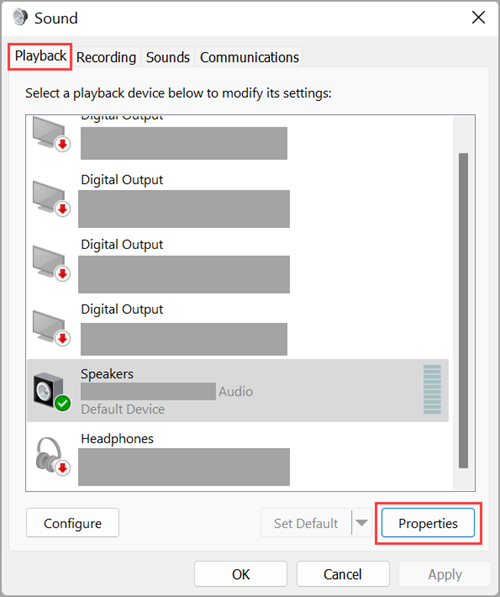
Open Start > Settings > System > Sound. Under Output, select the device you want to hear. Microsoft says this selection also sets the default output. For TV sound, select the TV or display-audio entry; for sound from the handheld, select its speakers.
Check the output volume and mute state. Open Volume mixer and check the game's volume too. An application can be muted even when the main volume is raised.
As a practical isolation test, play a familiar audio clip before reopening the game. If that works but the game stays silent, concentrate on the game's audio settings and mixer entry rather than replacing the dock immediately.