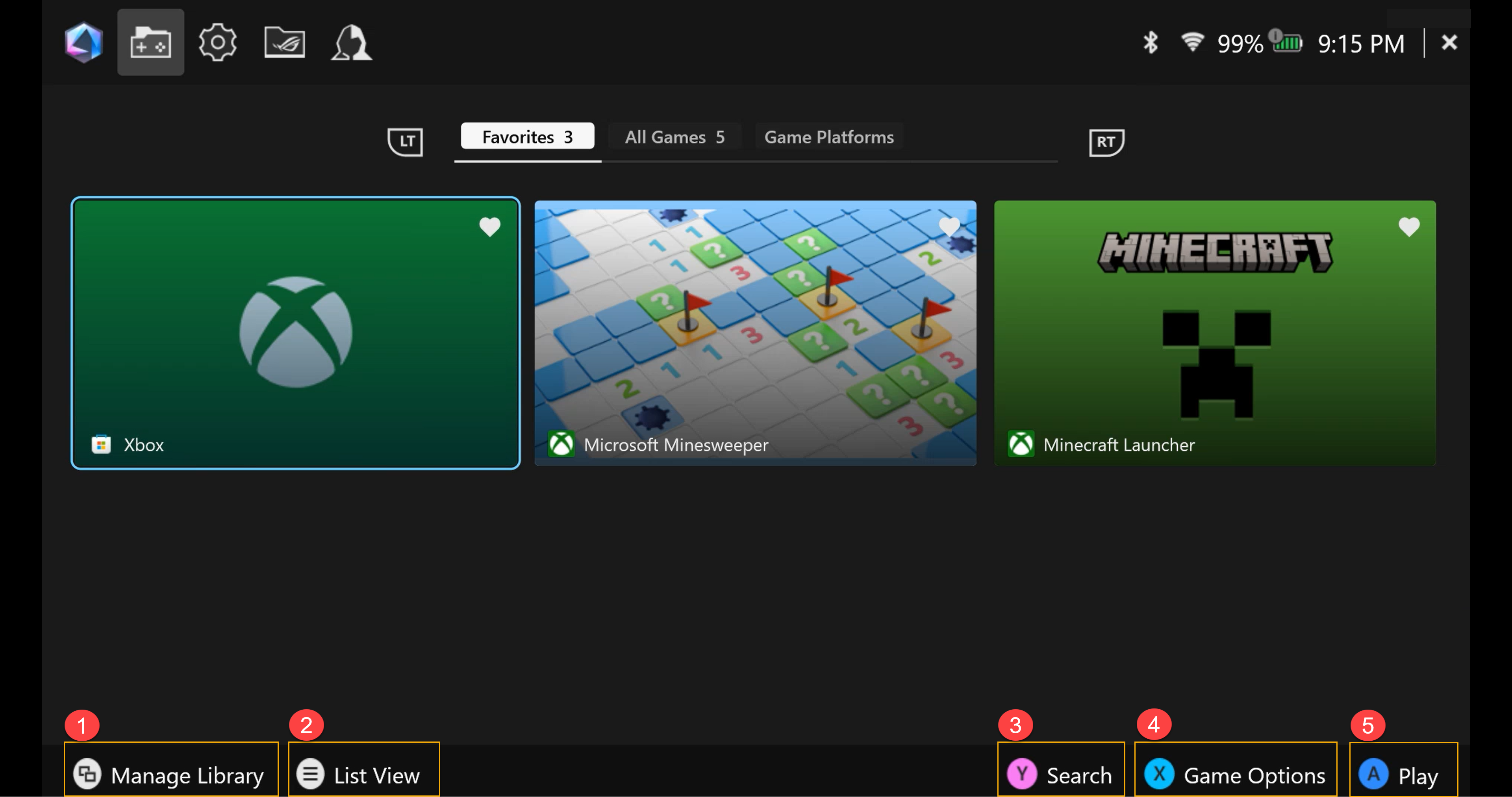
ROG Xbox Ally X Game Profiles: A Repeatable Setup Checklist
Build per-game Armoury Crate SE profiles, confirm when they apply, and record the settings needed for a repeatable handheld test.
Published September 29, 2026Updated September 29, 2026
Category
Performance
Difficulty
Beginner
Reading time
4 min
Published
September 29, 2026
HandheldAtlas guide
Complete walkthrough
Armoury Crate SE can apply controls and performance-related options per game on ROG Xbox Ally X. The useful part is consistency: one game can recall its own profile without forcing the same choices on every title.
Check the software baseline
This guide targets ROG Xbox Ally X model RC73XA. ASUS currently documents Windows 11 version 24H2 with build 26100.3624 or later and Armoury Crate SE 2.1.10.0 or later for the current Ally feature set. Install updates through the official device tools and follow any restart or power instructions before building profiles.
Open Armoury Crate SE on RC73XA
Press the Command Center button, then choose Open Armoury Crate SE. This differs from earlier RC71 and RC72 Ally models, which have a dedicated Armoury Crate button.
Make sure the game has a library entry
Installed games are normally imported automatically. If one is missing, open Manage Library and use Add Game/App to Library. Removing a tile from the Armoury Crate library does not uninstall the game from Windows.
Build the per-game profile
Highlight the game and open Game Options, then edit its Game Profile. Depending on the title and installed software version, a profile can hold:
Button mapping and secondary functions.
Stick sensitivity and vibration intensity.
An operating mode.
An FPS limiter.
ROG Ally GPU options such as AMD Fluid Motion Frames.
Change only the settings you intend to test. A profile that silently enables a different limiter, operating mode or frame-generation option can invalidate an otherwise useful comparison.
Use Auto Control Mode
ASUS states that Auto mode detects the focused game and applies its matching Game Profile. If you manually force Gamepad or Desktop Mode, per-game profiles are temporarily ignored. Return to Auto mode when a profile appears not to load.
Treat the FPS limiter carefully
The Command Center limiter offers 30, 45, 60, 90 and Max. ASUS says it supports Exclusive Full-screen mode and must be enabled before launching the game. A 60 FPS cap is not evidence of a 60 FPS average, and it should never be entered as a benchmark result.
Record a reproducible test
Before capturing performance, write down:
1Exact device: ROG Xbox Ally X RC73XA.
2Output resolution and refresh rate.
3Operating mode and the TDP shown in Command Center.
4Complete in-game graphics settings.
5Upscaling mode and render scale.
6Frame-generation state, including AFMF.
7FPS limiter or cap.
8Repeatable scene, run length and capture method.
Generated output frames must be distinguished from rendered FPS. An instantaneous overlay value or configured cap is not a measured average.
Troubleshooting
If the wrong controls load, first confirm that the game is in the Armoury Crate library and that Auto Control Mode is active. If performance differs unexpectedly, check the profile's operating mode, limiter and GPU features before changing the game's graphics. This isolates the variable that caused the change.
Scope and evidence
This is a configuration workflow, not a tested preset or benchmark. It intentionally makes no FPS, battery-life, temperature or performance-gain claim.
ASUS — ROG Ally Series Frequently Asked Questions (updated June 3, 2026; checked September 29, 2026)
https://rog.asus.com/support/faq/1050046/
ASUS — Armoury Crate SE Introduction (updated December 23, 2025; checked September 29, 2026)
https://rog.asus.com/us/support/faq/1050220/
ASUS — How to Customize the Armoury Crate SE Game Library on the ROG Ally or ROG Ally X
https://rog.asus.com/articles/guides/how-to-customize-the-armoury-crate-se-game-library-on-the-rog-ally-or-rog-ally-x/
Cover: official ASUS support screenshot showing Armoury Crate SE on ROG Xbox Ally X. It illustrates the correct device and interface; it is not performance evidence.